Track time in Toggl Focus without leaving your browser and the online apps you usually spend time on. Available for Chrome and other chromium browsers.
Our browser extension for Chrome and other chromium browsers lets you track time in your favourite web tools and wherever you are on the web.
Installing the Chrome extension
- Open the Toggl browser extension in the Chrome Web store
- Click “Add to Chrome”.
- Click the button next to the address bar and log in with your Toggl account.
Note:
Microsoft Edge (as well as other Chromium-based browsers) have support for Chromium extensions, so you can use the Toggl browser extension on those browsers by downloading it from the Chrome Store.
Toggl extension icon
Once you install the add-on, a Toggl icon will be added to the right of the address bar.

Dropdown Timer
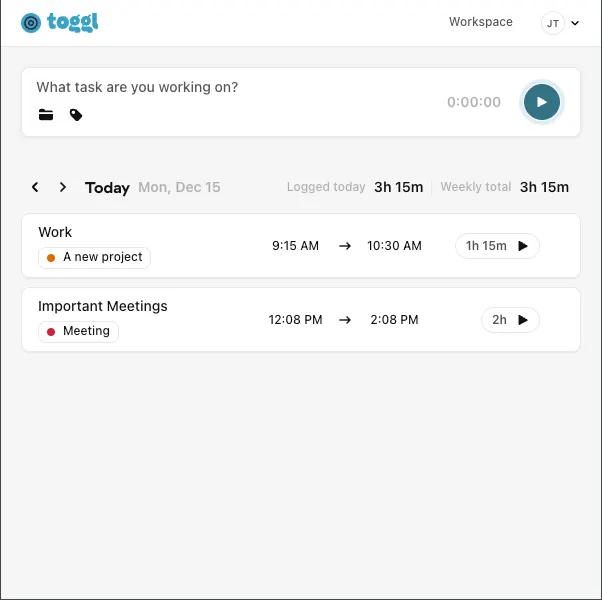
Click on the Toggl browser extension to reveal the timer’s dropdown. Here you can:
- Create a new time log in timer mode
- See total time tracked for the day and week
- See existing time entries for the past few days, and edit or delete them by clicking on them.
- Click on the Toggl icon on the top left to visit our WebApp
- Change your Workspace
- Go to your Settings & Integrations by clicking on your initials
Integrations
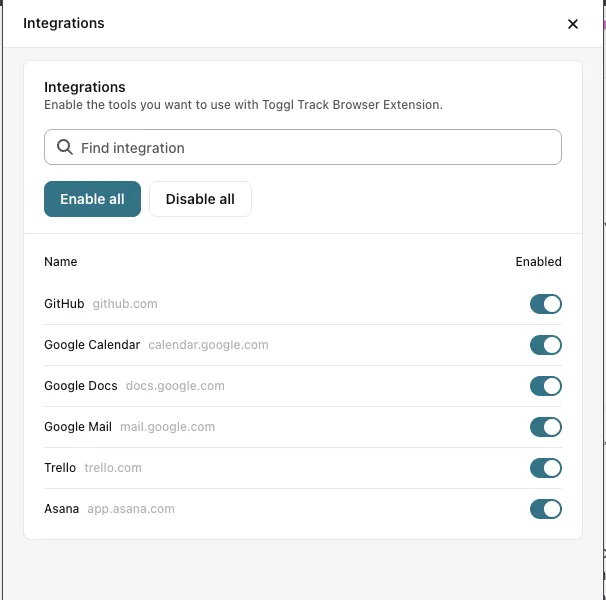
Under Integrations settings, you can enable the apps in which you would like to see the Toggl extension button to start a timer. You can enable or disable all integrations with one click as well.
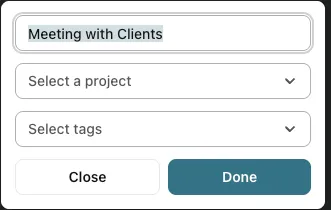
When tracking time by clicking the Toggl button in another app, we will match the Project name as a suggestion and you are able to confirm this.
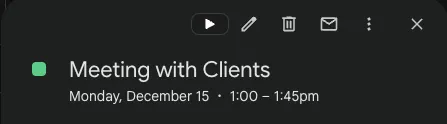
For example, you have a calendar meeting called “Meeting with Clients” and you press the play button. the Toggl Extension will automatically populate your Time Log with the Task name of “Meeting with Clients” and you are able to confirm this by pressing “Done”.
General
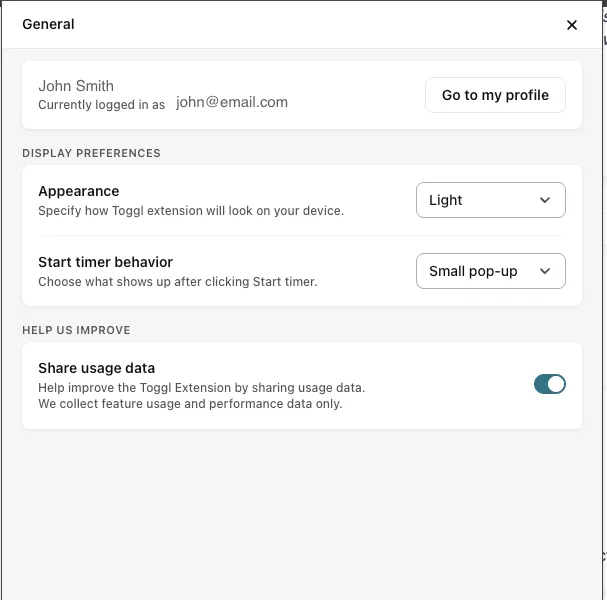
The General Tab has a number of basic settings.
Profile Settings
- Access your profile quickly. Here you can select your timezone preferences, country and other profile information.
Appearance
- Select how the Toggl Extension will appear on your device. Select between our Dark or Light modes
Start time behaviour
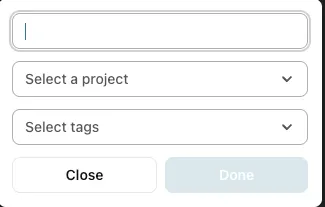
For your integrations, select how the dialogue should appear for you. Choose between Full screen, a small pop up or none at all.
Integrations list
Where to find the button
This is the list of the integrations supported and where users can find the buttons.
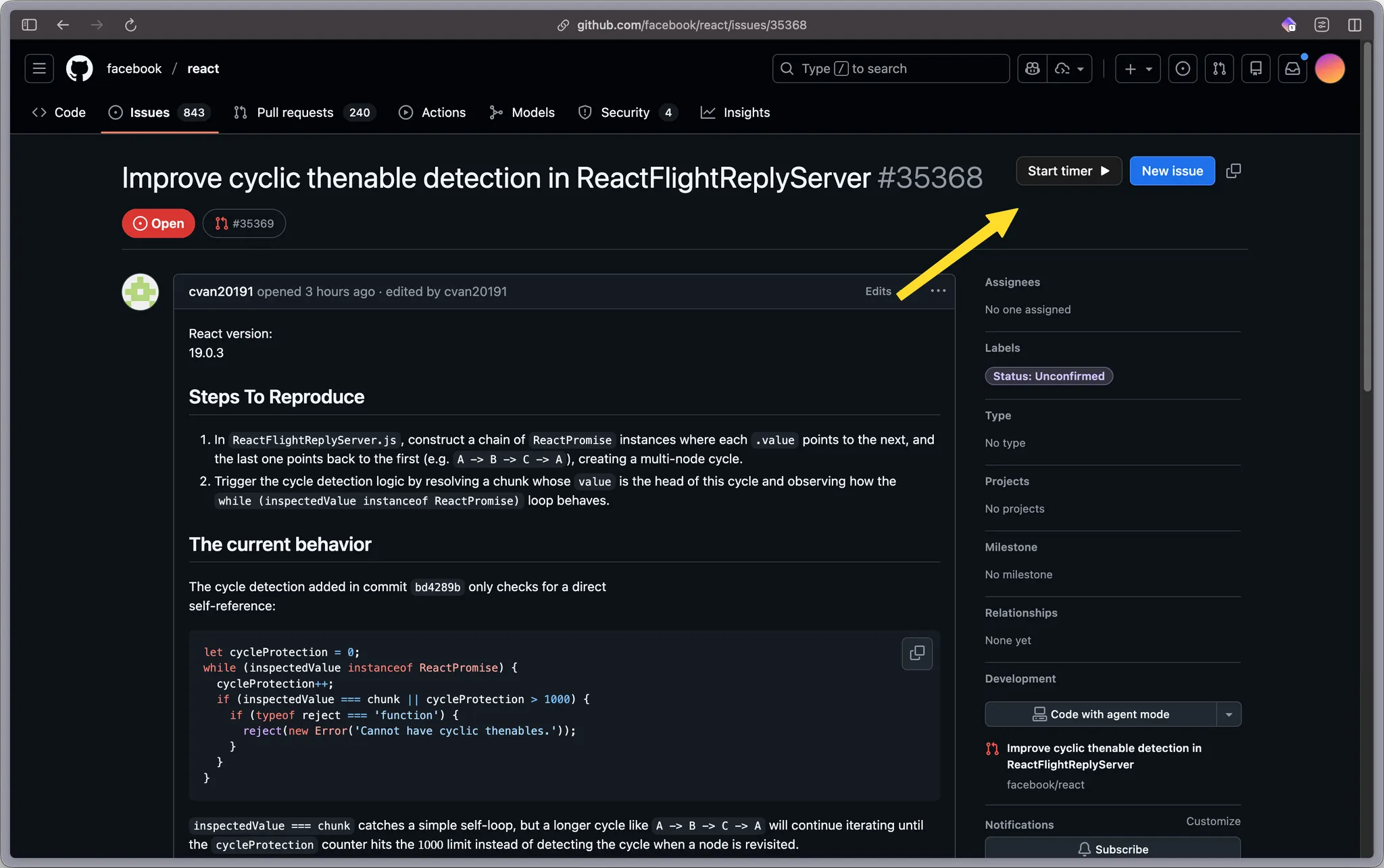
Github
Button is available on issue detail page.
Trello
Button is available on the card detail, and also on the card checklists (if present).

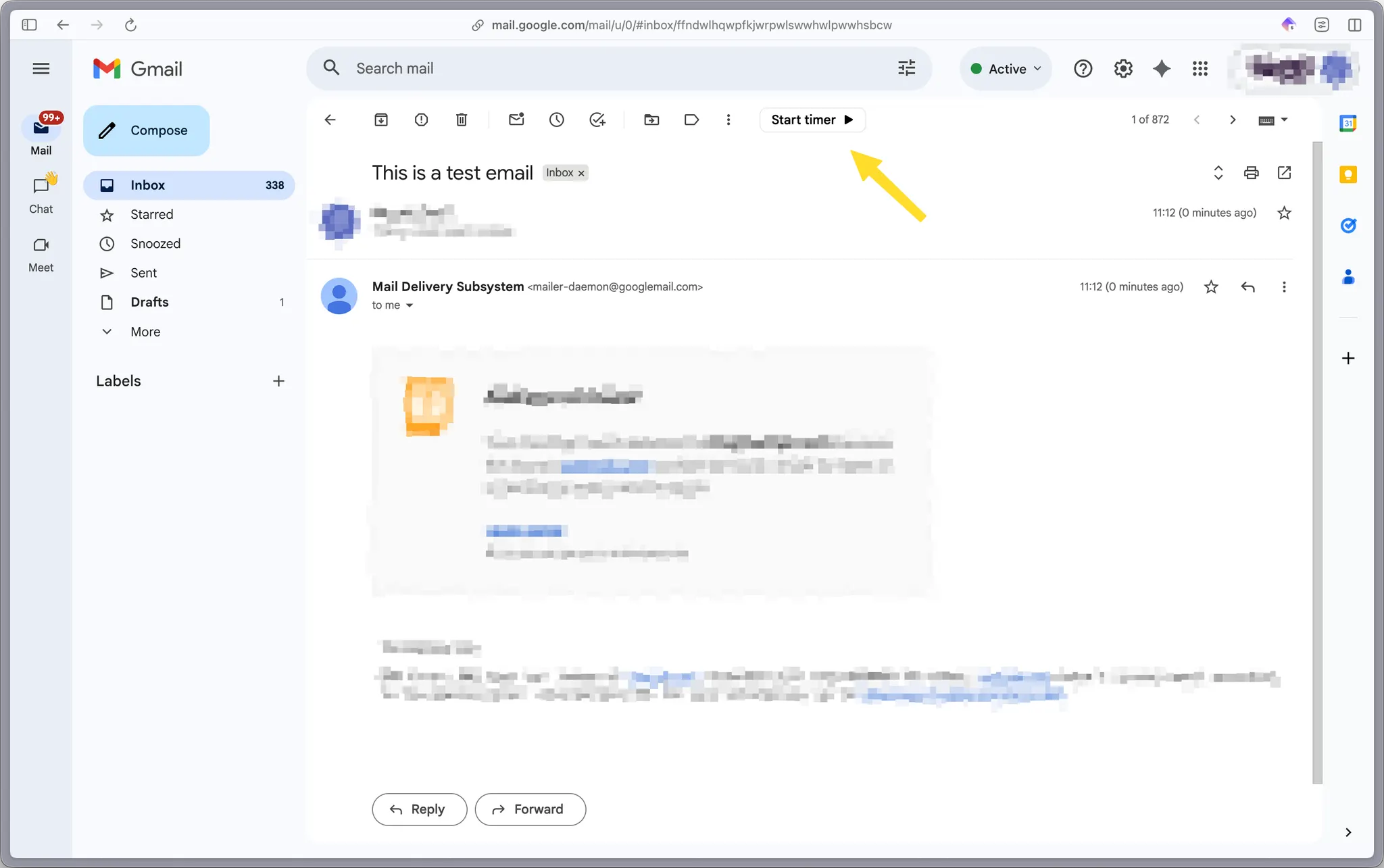
Google Mail
Button is available inside the emails detail page.
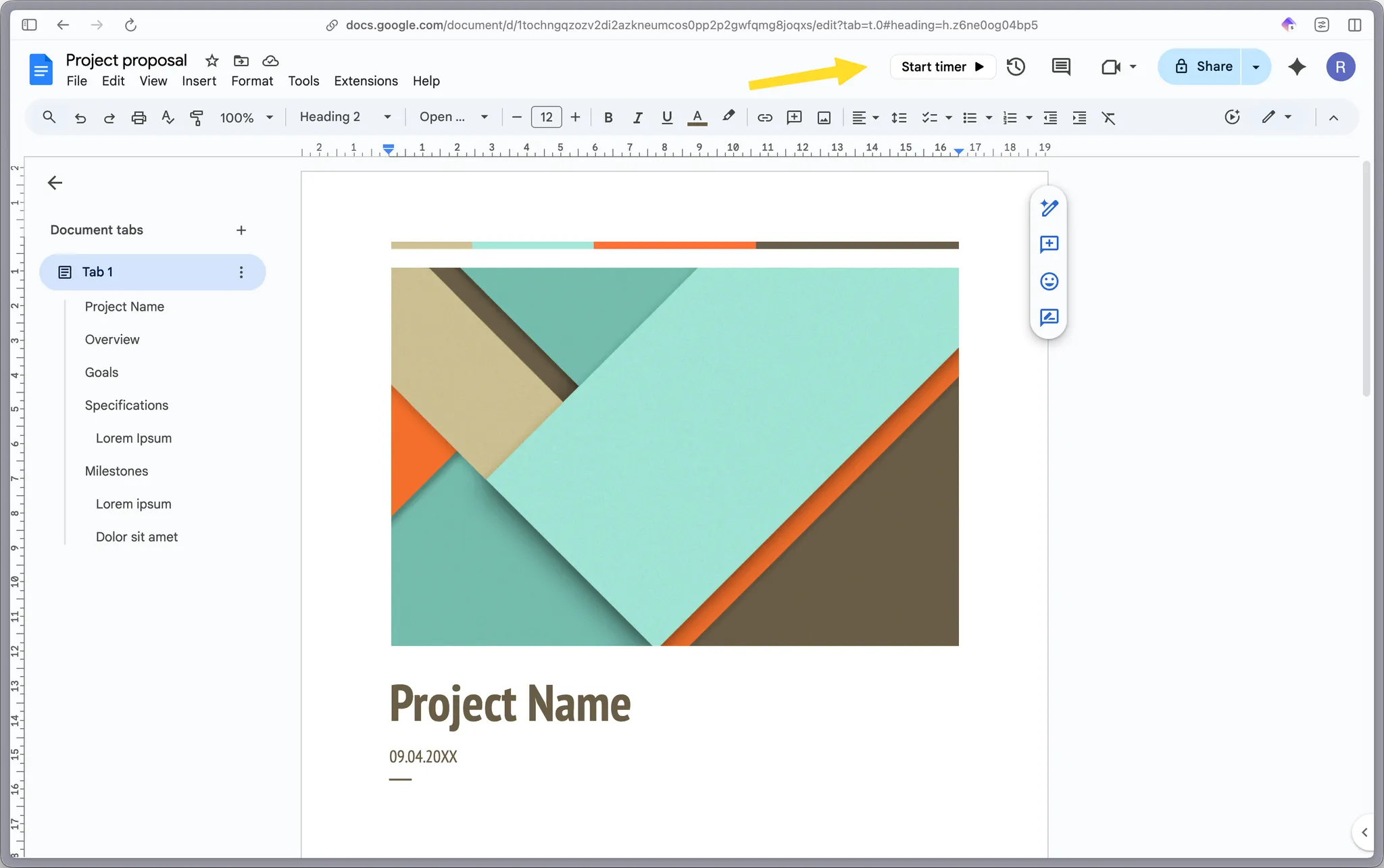
Google Docs
Button is available on the top of the bar while editing a document.
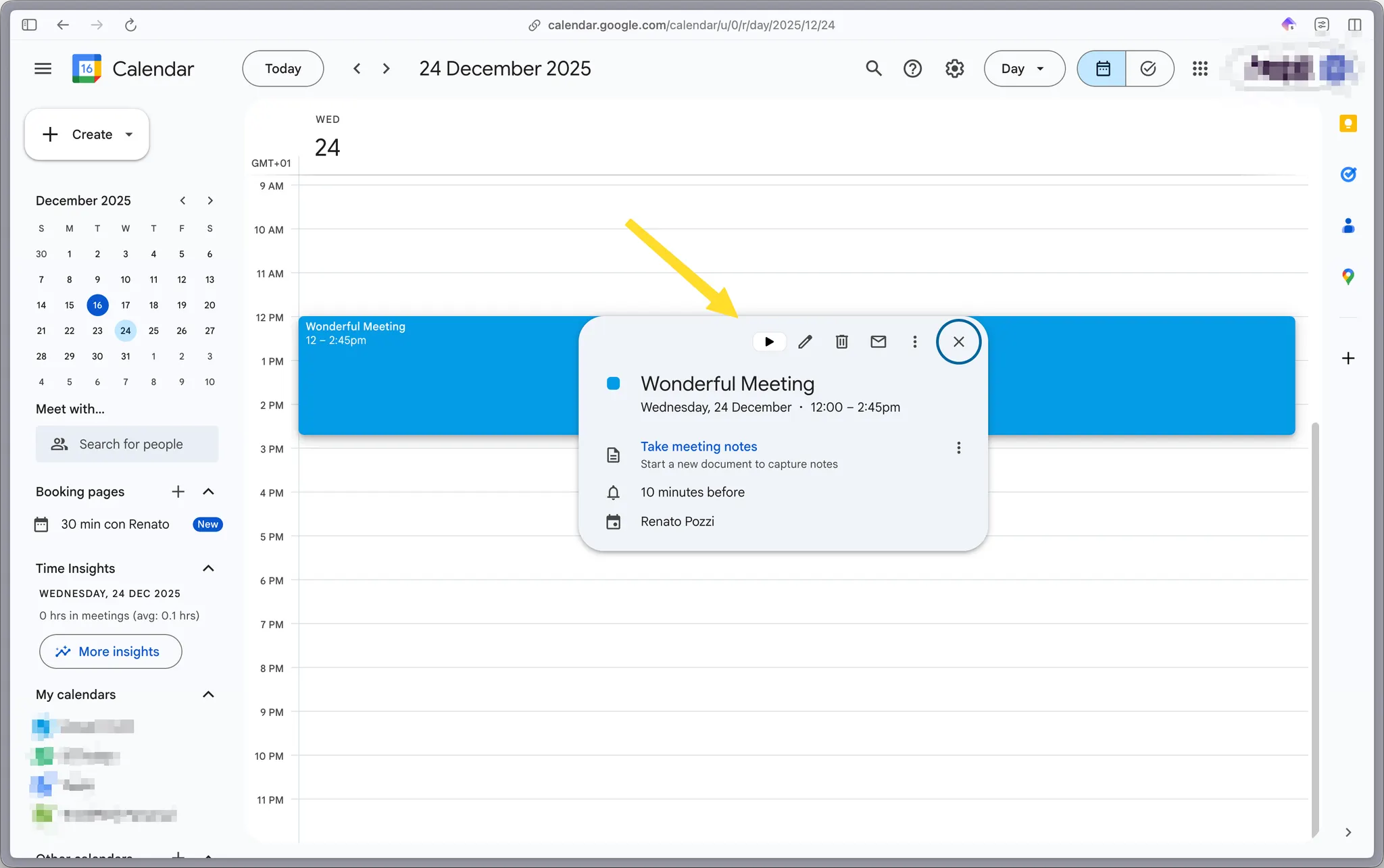
Google Calendar
Button is available inside the event details of the calendar.
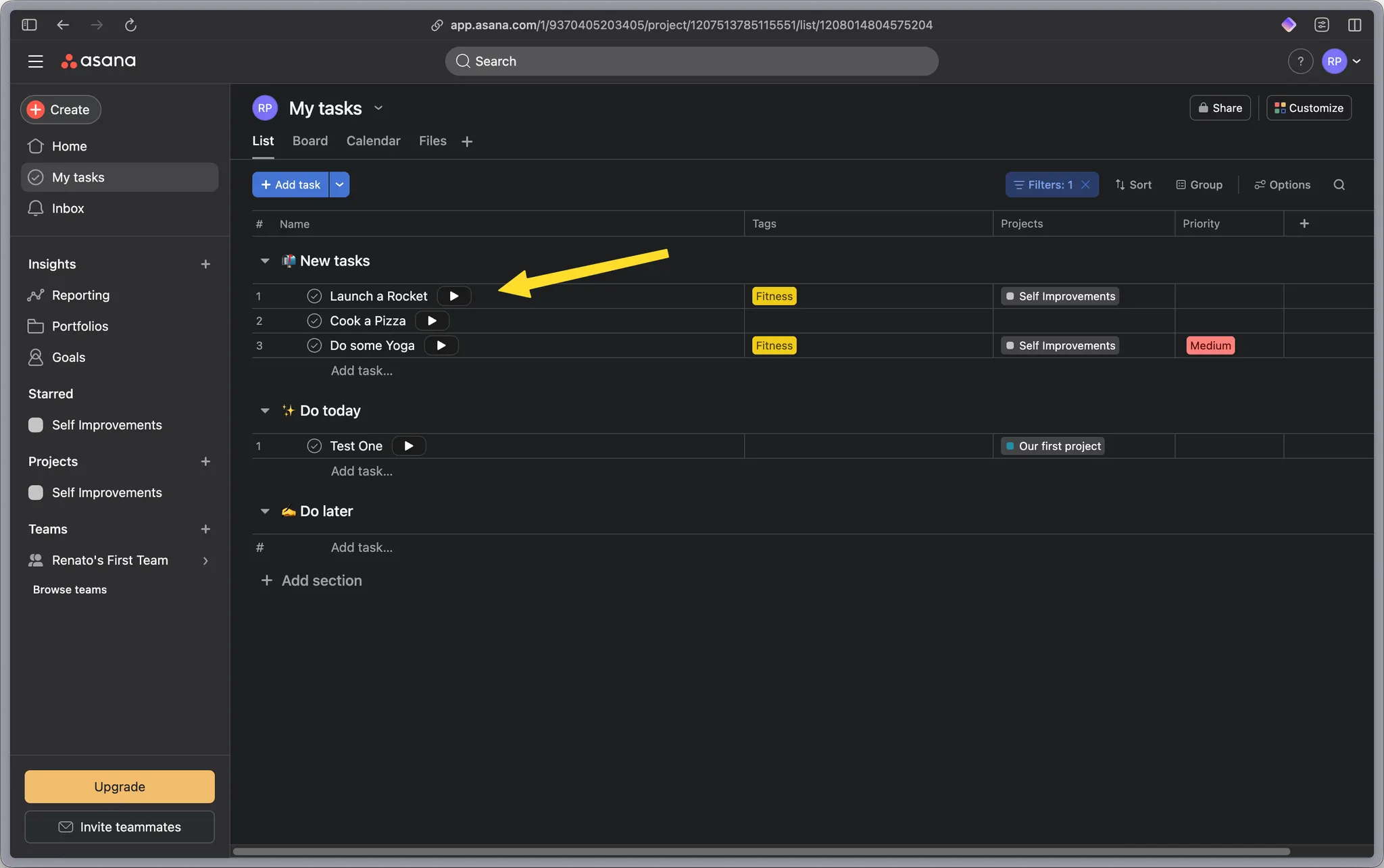
Asana
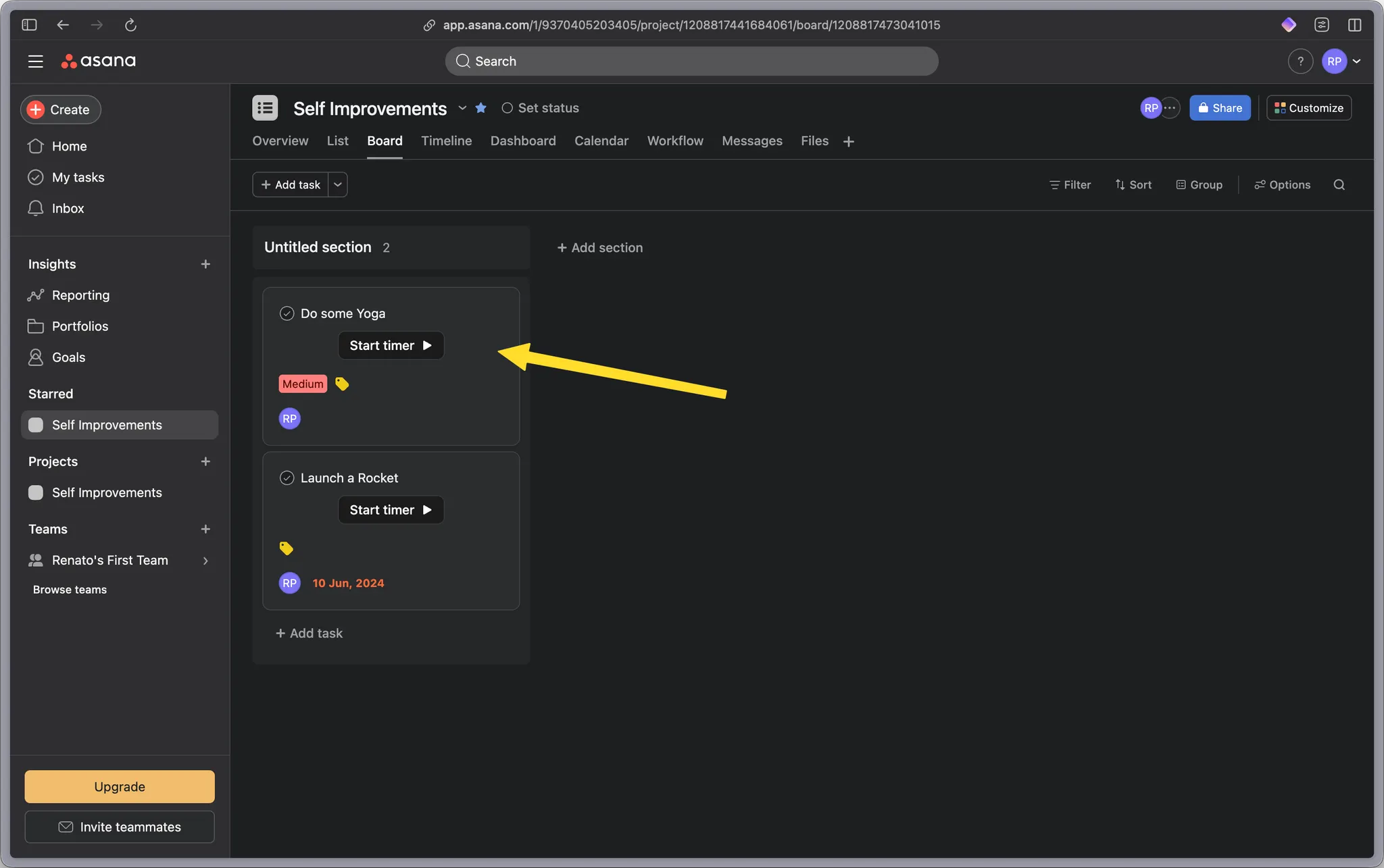
Button is available inside the tasks list in the spreadsheet view.
Button is also available inside the task detail view (by clicking on the spreadsheet row).
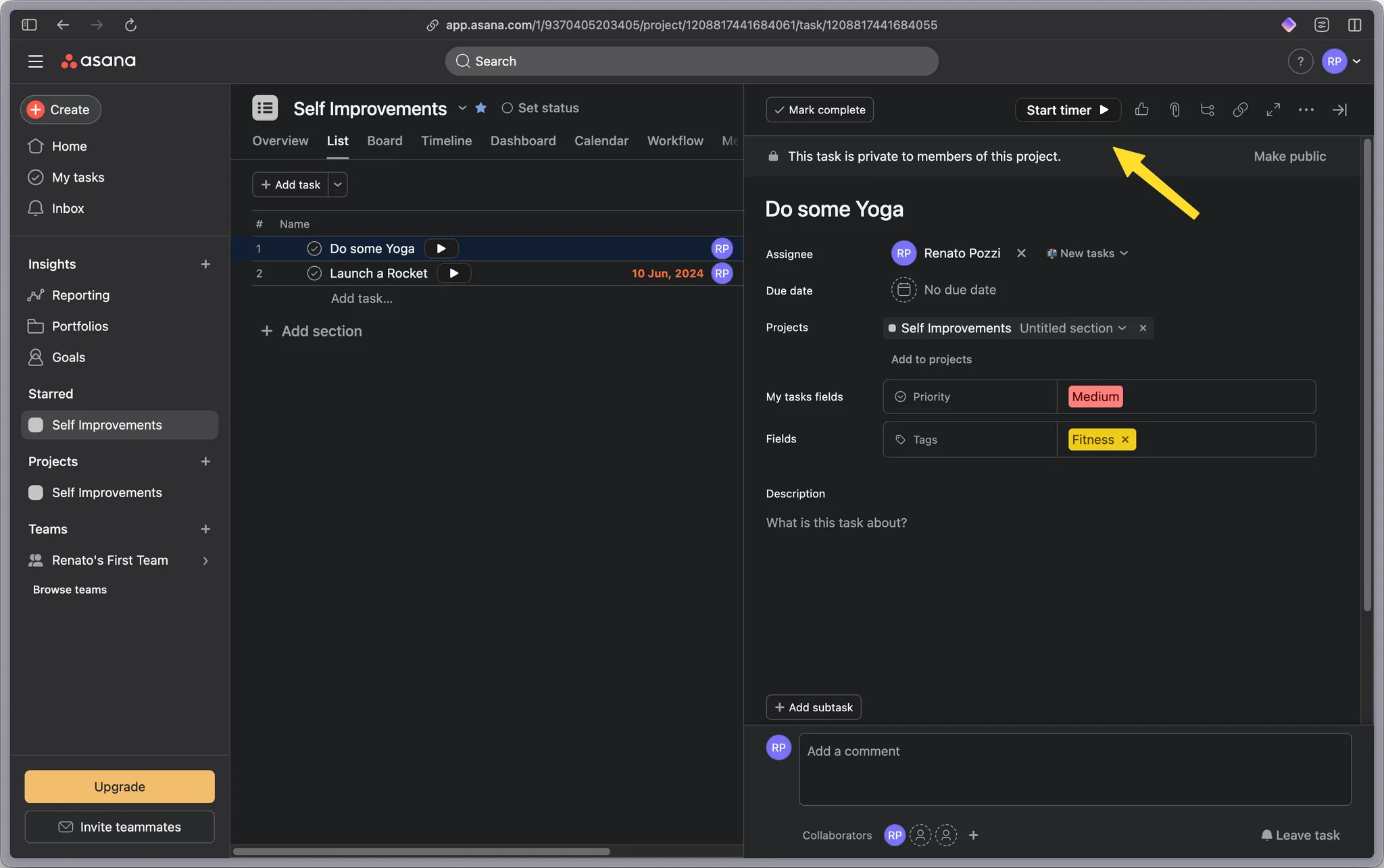
Button is also available inside the board view.